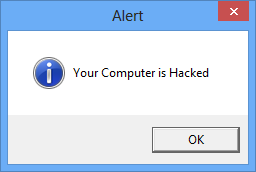
//pagead2.googlesyndication.com/pagead/js/adsbygoogle.js
(adsbygoogle = window.adsbygoogle || []).push({}); How many times you tried to create a Fake or prank virus to feel like hacker or to prank someone, sometimes you succeed sometimes not, there are often batch file creation by which you’ll create simple virus which may also cause some issue on computer but I am not going to write about any such virus which can lead to even little harm to your or your friend’s computer.
What I am going to create is a VBS file (VBScript) which have simple codes to display various pop-up windows with lots of messages one by one, which a non-tech person cannot identify that it is really a prank and nothing else, they might think that it is a virus and they are in trouble it’s your responsibility to tell them that there is no virus but bunch of message box which does not harm the computer and you just fooled them.
This kind of Prank Virus is easy to create with notepad and few lines of simple code. Follow these steps-
Step 1. Writing Sample Code
1. Open Notepad or Notepad++.
Here is the code to generate message box in windows computer.
X=MsgBox(“Message Description”,0+16,”Title”)
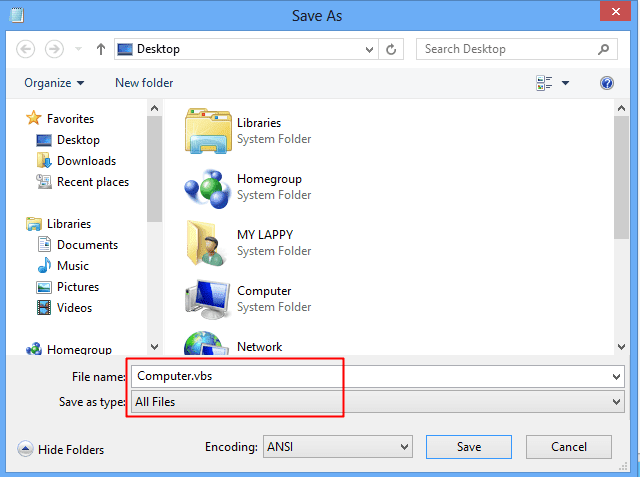
Type the above code in Notepad and save this notepad on your desktop, Give it some convincing name like “My Computer” and Save the file as .vbs extension, and select all files instead of *txt. Like My Computer.vbs
Step 2. Understanding the Code
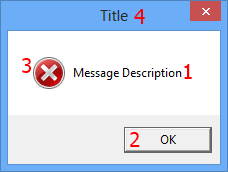
Now open the saved file and you will a message box like shown in the image below.
//pagead2.googlesyndication.com/pagead/js/adsbygoogle.js
(adsbygoogle = window.adsbygoogle || []).push({});
In above Code X=MsgBox(“Message Description”,0+16,”Title”) here is the explanation of this code.
Message Description – This is what you want to show as Message.
Button – Type of button like OK, Yes, No, Cancel etc
Icon – Type of icon you want to show like Info icon, critical icon etc
Title – Title of message Box.
1. You can write any number from 1,2,3 or 4 instead of 0 (before the ‘+’ symbol)
Here is the meaning of these numbers:
0 = OK Button,
1 = OK / Cancel Button,
2 = Abort / Retry / Ignore Button,
3 = Yes / No / Cancel Button,
4 = Yes / No Button,
5 = Retry / Cancel Button
2. You can write 32 or 48 or 64 instead of 16.
Here is the meaning of each number:
16 = Critical Icon,
32 = Help Icon,
48 = Warning Icon,
64 = Information Icon,
How to Create a Fake Prank Virus Awesome and Harmless
By: Vikas Sinha | Last Updated: Aug 22, 2018 .
How many times you tried to create a Fake or prank virus to feel like hacker or to prank someone, sometimes you succeed sometimes not, there are often batch file creation by which you’ll create simple virus which may also cause some issue on computer but I am not going to write about any such virus which can lead to even little harm to your or your friend’s computer.
What I am going to create is a VBS file (VBScript) which have simple codes to display various pop-up windows with lots of messages one by one, which a non-tech person cannot identify that it is really a prank and nothing else, they might think that it is a virus and they are in trouble it’s your responsibility to tell them that there is no virus but bunch of message box which does not harm the computer and you just fooled them.
How to Create Fake Virus to Prank Someone-
prank virus fake
//pagead2.googlesyndication.com/pagead/js/adsbygoogle.js
(adsbygoogle = window.adsbygoogle || []).push({}); This kind of Prank Virus is easy to create with notepad and few lines of simple code. Follow these steps-
Step 1. Writing Sample Code
1. Open Notepad or Notepad++.
Here is the code to generate message box in windows computer.
X=MsgBox(“Message Description”,0+16,”Title”)
Type the above code in Notepad and save this notepad on your desktop, Give it some convincing name like “My Computer” and Save the file as .vbs extension, and select all files instead of *txt. Like My Computer.vbs
fake virus
Step 2. Understanding the Code
Now open the saved file and you will a message box like shown in the image below.
prank virus
In above Code X=MsgBox(“Message Description”,0+16,”Title”) here is the explanation of this code.
Message Description – This is what you want to show as Message.
Button – Type of button like OK, Yes, No, Cancel etc
Icon – Type of icon you want to show like Info icon, critical icon etc
Title – Title of message Box.
1. You can write any number from 1,2,3 or 4 instead of 0 (before the ‘+’ symbol)
Here is the meaning of these numbers:
0 = OK Button,
1 = OK / Cancel Button,
2 = Abort / Retry / Ignore Button,
3 = Yes / No / Cancel Button,
4 = Yes / No Button,
5 = Retry / Cancel Button
2. You can write 32 or 48 or 64 instead of 16.
Here is the meaning of each number:
16 = Critical Icon,
32 = Help Icon,
48 = Warning Icon,
64 = Information Icon,
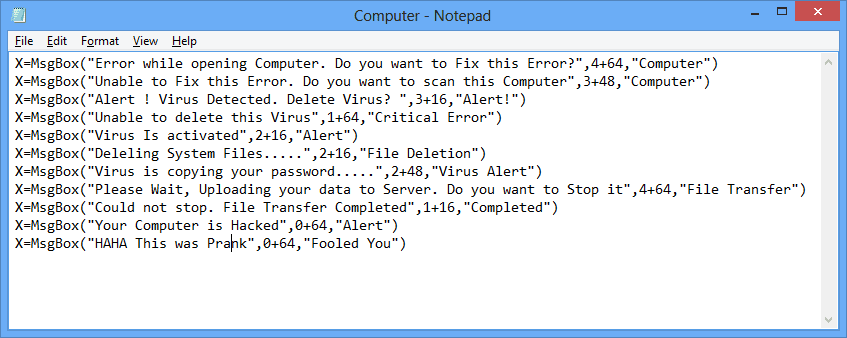
Type the above code with your message, desired button, icon and title, one line of code generates one message box so you need to write code in separate line to generate another message box like
X=MsgBox(“Error while opening Computer. Do you want to Fix this Error?”,4+64,”Computer”)
X=MsgBox(“Unable to Fix this Error. Do you want to scan this Computer”,3+48,”Computer”)
It will look like the below image –
Type convening message with proper buttons, relative icons, and title, and save this notepad on your desktop but don’t forget to assign .vbs extension and select all files instead of *txt while saving this notepad. When you save it you will get an icon which looks like

//pagead2.googlesyndication.com/pagead/js/adsbygoogle.js
(adsbygoogle = window.adsbygoogle || []).push({});
Step 3. Changing the Icon
You need to change the icon of this file so that victim is intended to open the file, you can change this icon to Computer icon to make it looks like original, but you can’t directly change the icon follow this step to change the icon.
Copy and paste the file to another location like in C drive.
Create Shortcut – right click on it and send to desktop.
On the desktop you will get the shortcut, Right click on it go to properties and Click on Change icon Now select the computer icon and hit OK.
 AZMOVIEZ