EXECL SHORTCUT PART 2
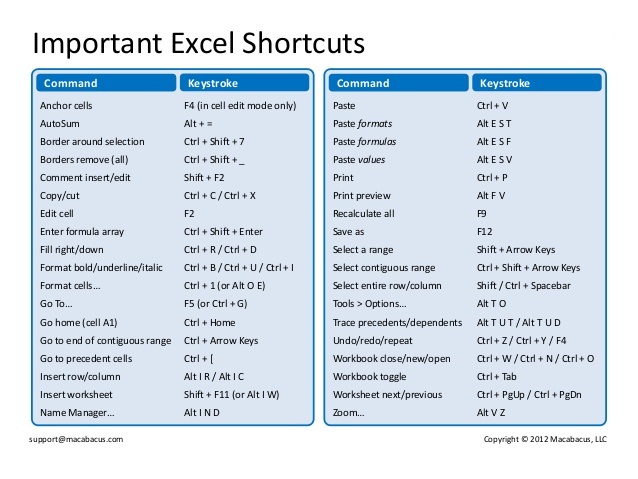
|
To do this
|
Press
|
|
Select the active tab of the ribbon, and activate the access keys.
|
Alt or F10. To move to a different tab, use access keys or the arrow keys.
|
|
Move the focus to commands on the ribbon.
|
Tab or Shift+Tab
|
|
Move down, up, left, or right, respectively, among the items on the Ribbon.
|
The Down Arrow, Up Arrow, Left Arrow, or Right Arrow key
|
|
Activate a selected button.
|
Spacebar or Enter
|
|
Open the list for a selected command.
|
The Down Arrow key
|
|
Open the menu for a selected button.
|
Alt+Down Arrow
|
|
When a menu or submenu is open, move to the next command.
|
Down Arrow key
|
|
Expand or collapse the ribbon.
|
Ctrl+F1
|
|
Open a context menu.
|
Shift+F10
Or, on a Windows keyboard
Context key (between the right Alt and right Ctrl keys)
|
|
Move to the submenu when a main menu is open or selected.
|
Left Arrow key
|
Excel keyboard shortcut referenceKeyboard shortcuts for navigating in cells
|
To do this
|
Press
|
|
Move to the previous cell in a worksheet or the previous option in a dialog box.
|
Shift+Tab
|
|
Move one cell up in a worksheet.
|
Up Arrow key
|
|
Move one cell down in a worksheet.
|
Down Arrow key
|
|
Move one cell left in a worksheet.
|
Left Arrow key
|
|
Move one cell right in a worksheet.
|
Right Arrow key
|
|
Move to the edge of the current data region in a worksheet.
|
Ctrl+arrow key
|
|
Enter End mode, move to the next nonblank cell in the same column or row as the active cell, and turn off End mode. If the cells are blank, move to the last cell in the row or column.
|
End, arrow key
|
|
Move to the last cell on a worksheet, to the lowest used row of the rightmost used column.
|
Ctrl+End
|
|
Extend the selection of cells to the last used cell on the worksheet (lower-right corner).
|
Ctrl+Shift+End
|
|
Move to the cell in the upper-left corner of the window when Scroll Lock is turned on.
|
Home+Scroll Lock
|
|
Move to the beginning of a worksheet.
|
Ctrl+Home
|
|
Move one screen down in a worksheet.
|
Page Down
|
|
Move to the next sheet in a workbook.
|
Ctrl+Page Down
|
|
Move one screen to the right in a worksheet.
|
Alt+Page Down
|
|
Move one screen up in a worksheet.
|
Page Up
|
|
Move one screen to the left in a worksheet.
|
Alt+Page Up
|
|
Move to the previous sheet in a workbook.
|
Ctrl+Page Up
|
|
Move one cell to the right in a worksheet. Or, in a protected worksheet, move between unlocked cells.
|
Tab
|
|
Cycle through floating shapes, such as text boxes or images.
|
Ctrl+Alt+5, and then the Tab key repeatedly
|
|
Exit the floating shape navigation and return to the normal navigation.
|
Esc
|
Keyboard shortcuts for formatting cells
|
To do this
|
Press
|
|
Open the Format Cells dialog box.
|
Ctrl+1
|
|
Format fonts in the Format Cells dialog box.
|
Ctrl+Shift+F or Ctrl+Shift+P
|
|
Edit the active cell and put the insertion point at the end of its contents. Or, if editing is turned off for the cell, move the insertion point into the formula bar. If editing a formula, toggle Point mode off or on so you can use arrow keys to create a reference.
|
F2
|
|
Add or edit a cell comment.
|
Shift+F2
|
|
Open the Insert dialog to insert blank cells.
|
Ctrl+Shift+Plus (+)
|
|
Open the Delete dialog box to delete selected cells.
|
Ctrl+Minus (-)
|
|
Enter the current time.
|
Ctrl+Shift+colon (:)
|
|
Enter the current date.
|
Ctrl+semi-colon (;)
|
|
Switch between displaying cell values or formulas in the worksheet.
|
Ctrl+grave accent (`)
|
|
Copy a formula from the cell above the active cell into the cell or the Formula Bar.
|
Ctrl+apostrophe (‘)
|
|
Move the selected cells.
|
Ctrl+X
|
|
Copy the selected cells.
|
Ctrl+C
|
|
Paste content at the insertion point, replacing any selection.
|
Ctrl+V
|
|
Open the Paste Special dialog box.
|
Ctrl+Alt+V
|
|
Italicize text or remove italic formatting.
|
Ctrl+I or Ctrl+3
|
|
Bold text or remove bold formatting.
|
Ctrl+B or Ctrl+2
|
|
Underline text or remove underline.
|
Ctrl+U or Ctrl+4
|
|
Apply or remove strikethrough formatting.
|
Ctrl+5
|
|
Switch between hiding objects, displaying objects, and displaying placeholders for objects.
|
Ctrl+6
|
|
Apply an outline border to the selected cells.
|
Ctrl+Shift+ampersand (&)
|
|
Remove the outline border from the selected cells.
|
Ctrl+Shift+underline (_)
|
|
Display or hide the outline symbols.
|
Ctrl+8
|
|
Use the Fill Down command to copy the contents and format of the topmost cell of a selected range into the cells below.
|
Ctrl+D
|
|
Apply the General number format.
|
Ctrl+Shift+tilde (~)
|
|
Apply the Currency format with two decimal places (negative numbers in parentheses).
|
Ctrl+Shift+dollar sign ($)
|
|
Apply the Percentage format with no decimal places.
|
Ctrl+Shift+percent (%)
|
|
Apply the Scientific number format with two decimal places.
|
Ctrl+Shift+caret (^)
|
|
Apply the Date format with the day, month, and year.
|
Ctrl+Shift+number sign (#)
|
|
Apply the Time format with the hour and minute, and AM or PM.
|
Ctrl+Shift+at sign (@)
|
|
Apply the Number format with two decimal places, thousands separator, and minus sign (-) for negative values.
|
Ctrl+Shift+exclamation point (!)
|
|
Open the Insert hyperlink dialog.
|
Ctrl+K
|
|
Check spelling in the active worksheet or selected range.
|
F7
|
|
Display the Quick Analysis options for selected cells that contain data.
|
Ctrl+Q
|
|
Display the Create Table dialog box.
|
Ctrl+L or Ctrl+T
|
 AZMOVIEZ